<totp>
    <identifier>my otp</identifier>
    <issuer>local midpoint</issuer>

    <!-- following properties are optional, default values are shown -->

    <!-- item path to FocusType property used as label in auth URI -->
    <label>name</label>
    <!-- Time step in seconds. -->
    <period>30</period>
    <!--
        Number of digits in generated OTP, default is 6, supported values are 6 and 8.
        Most authenticator apps support only 6 digits.
    -->
    <digits>6</digits>
    <!-- Supported algorithms are: sha1, sha256, sha512 -->
    <algorithm>sha1</algorithm>
    <!-- Secret length in bytes, defaults are specified for all supported algorithms. -->
    <secretLength>20</secretLength>
    <!--
        The number of time steps that are allowed for the TOTP code to be valid.
        This allows for some clock skew between the server and the client.
    -->
    <window>1</window>
</totp>Module TOTP
|
Since 4.11
This functionality is available since version 4.11.
|
This page describes how to use the TOTP module in midPoint.
The TOTP module is used for multi-factor authentication (MFA) of users based on the Time-based One-Time Password (TOTP) algorithm. Configuration consists of two parts: module definition and authentication sequence configuration. Both have to be defined in a security policy.
Security policy configuration
The totp module cannot be the first module in the sequence.
Before the totp module, midPoint needs to use an authentication module that identifies users, for example, loginForm or focusIdentification.
|
| Parameter | Description | Default value |
|---|---|---|
|
Mandatory. Unique identifier of the module, used in authentication sequence configuration. |
|
|
Mandatory. Issuer name used in Key URI and displayed in the authenticator app (e.g., "Demo midPoint"). |
|
|
Item path or property that should be used in the Key URI as a label (e.g., "fullName"). This helps identify the account in the authenticator app, especially when a user has multiple accounts. |
|
|
Hashing algorithm used for TOTP code generation.
Supported values are |
|
|
Number of digits in the generated TOTP code.
Supported values are |
|
|
Time period in seconds for which the generated TOTP code is valid. The default value is 30 seconds, which is also the most commonly used value. Some authenticator apps ignore this parameter and support only 30 seconds (e.g., Google Authenticator). |
|
Example TOTP module configuration
The authentication sequence has to contain at least one module before the totp module that selects the correct focus (user) for TOTP authentication.
This can be:
-
loginFormmodule - Selects the user based on username (if the user’s password is correct). -
focusIdentificationmodule - Selects the user based on an identifier (e.g., email) without password verification.
Typical sequences using the TOTP module:
-
Password authentication followed by TOTP authentication, both mandatory.
-
formLogin-
necessity:requisite
-
-
totp-
necessity:requisite
-
-
-
Mandatory password authentication followed by an optional TOTP authentication.
For users that have TOTP configured, TOTP authentication will be required. For others, TOTP authentication will be skipped.
-
formLogin-
necessity:requisite
-
-
totp-
necessity:requisite -
acceptEmpty:true
-
-
Example of a complete TOTP authentication configuration
<authentication>
    <modules>
        <totp>
            <identifier>my totp</identifier>
            <issuer>Demo midPoint</issuer>
            <label>fullName</label>
        </totp>
    </modules>
    <sequence>
        <identifier>admin-gui-default</identifier>
        <displayName>Default gui sequence</displayName>
        <channel>
            <default>true</default>
            <channelId>http://midpoint.evolveum.com/xml/ns/public/common/channels-3#user</channelId>
            <urlSuffix>gui-default</urlSuffix>
        </channel>
        <module>
            <identifier>loginForm</identifier>
            <order>1</order>
            <necessity>requisite</necessity>
        </module>
        <module>
            <identifier>my totp</identifier>
            <order>2</order>
            <necessity>requisite</necessity>
        </module>
    </sequence>
</authentication>
Use cases
TOTP authentication setup (enrolling users)
The TOTP authentication setup process is initiated by the user from GUI. It can be initiated from the user self profile or the user details page.
The list of user TOTP credentials is displayed in:
-
Self-service > Credentials
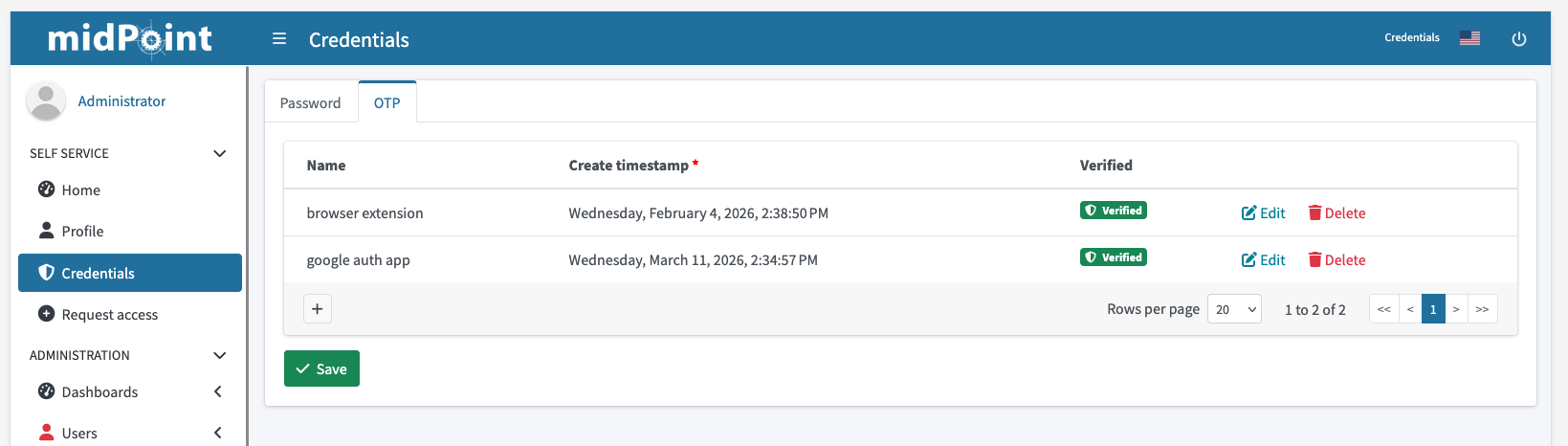 Figure 1. TOTP credentials list in user profile
 -
User > OTP
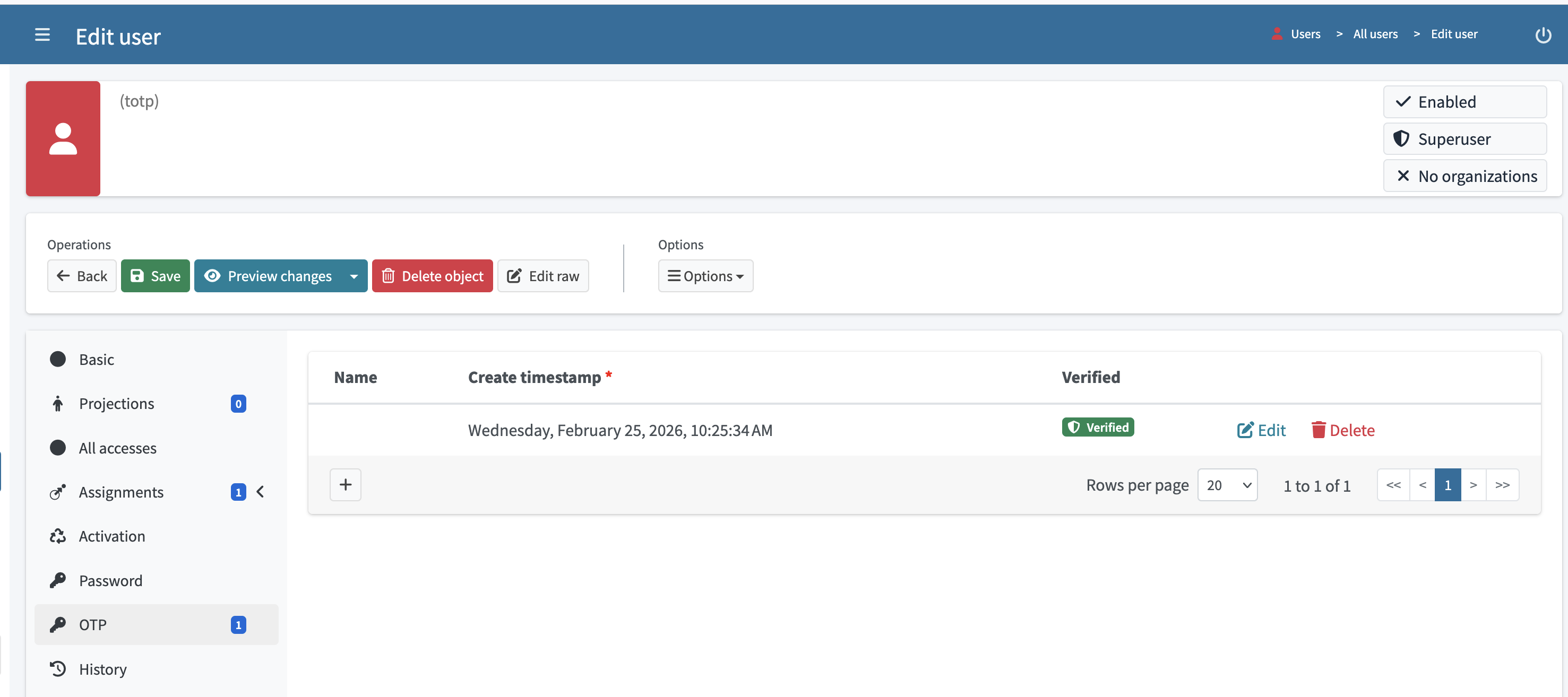 Figure 2. TOTP credentials list on user details page
The secret used for TOTP code generation is generated by midPoint. It is stored in the focus (user) credentials in encrypted form.
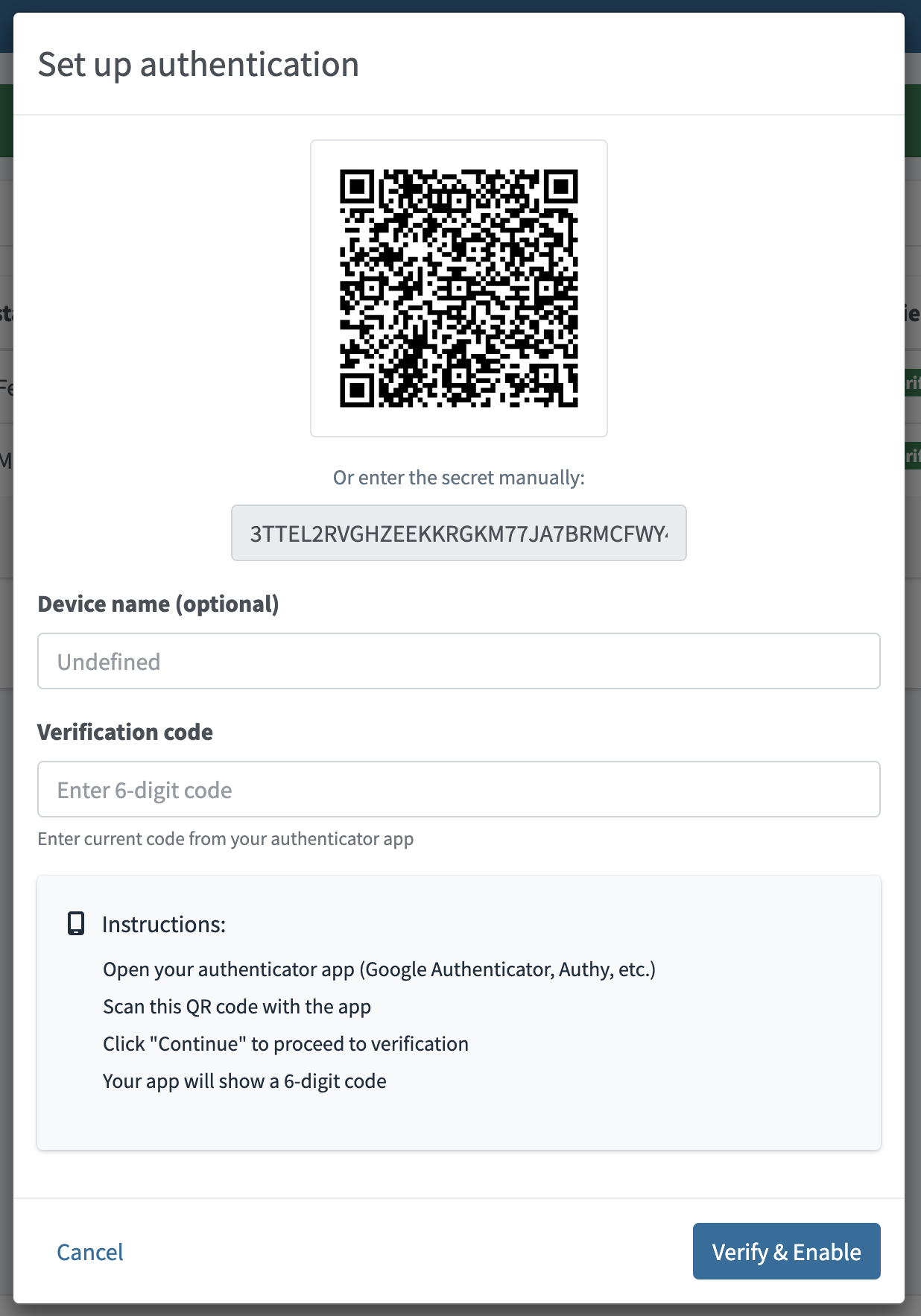
Figure 3. Dialog for creating a new TOTP credential
Example of a stored TOTP secret
<credentials xmlns="http://midpoint.evolveum.com/xml/ns/public/common/common-3"
             xmlns:xsi="http://www.w3.org/2001/XMLSchema-instance"
             xsi:type="CredentialsType">

    <password>
        <!-- password data here, omitted for brevity -->
    </password>

    <otps>
        <totp>
            <!-- multiple OTPs can be stored -->
            <secret>
                <encryptedData>
                    <!-- otp secret data here, omitted for brevity -->
                </encryptedData>
            </secret>
            <createTimestamp>2025-11-11T13:54:51.673+01:00</createTimestamp>
            <verified>true</verified>
        </totp>
    </otps>
</credentials>
Changing TOTP credentials
A TOTP credential cannot be modified after it has been stored and verified. To reset TOTP authentication for a user, create a new TOTP credential and delete the unused one.
Users can only modify the TOTP credential name which is used as a description.
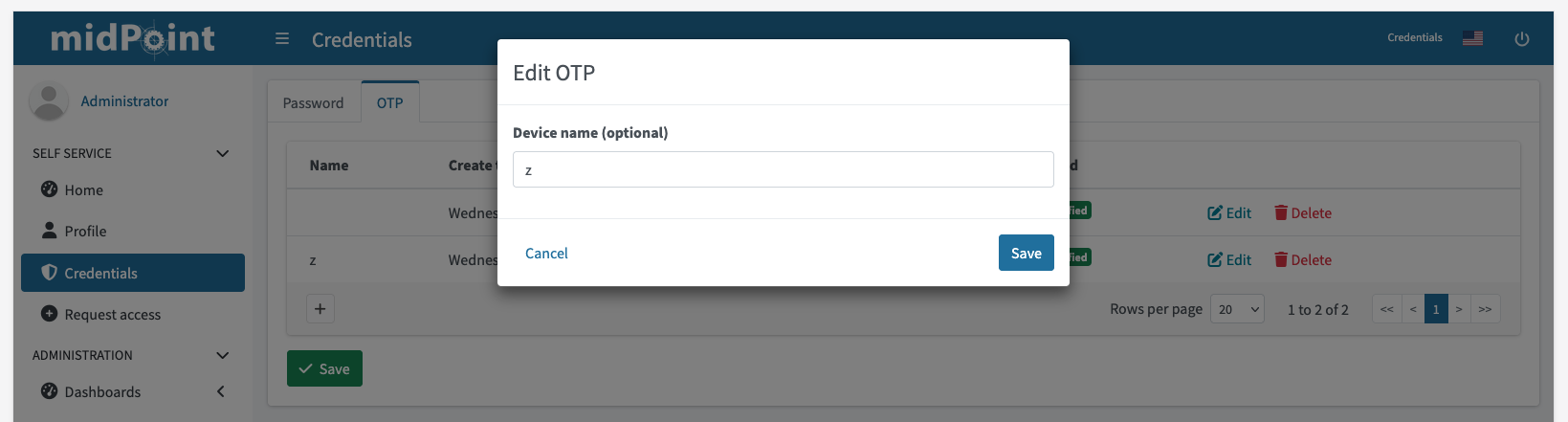
Figure 4. Edit the name of an existing TOTP credential
TOTP credentials reset
A TOTP secret cannot be modified after it has been stored and verified. To reset TOTP authentication for a user, create a new TOTP credential and delete the existing one.
Authentication using TOTP
Authentication using TOTP is initiated by user from login screen.
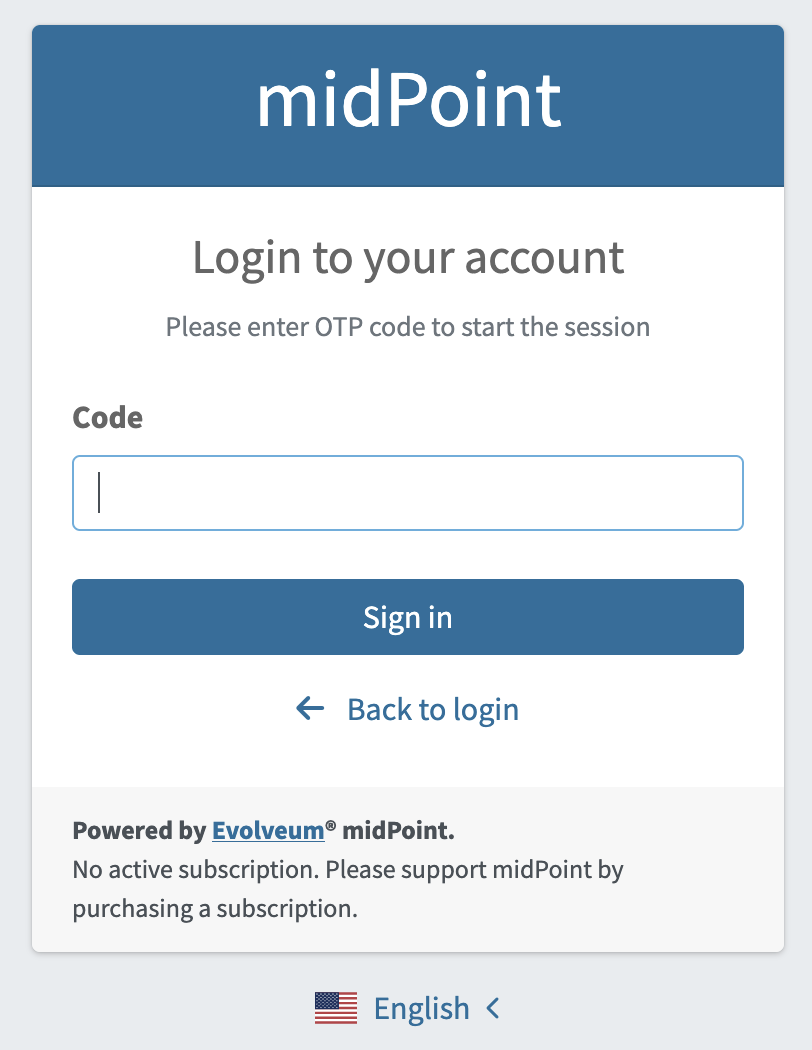
Figure 5. TOTP login page, user has to insert TOTP code generated by authenticator app
Hide OTP panel
The OTP panel is displayed in the self-service Credentials page and in the user detail OTP page.
Figure 6. OTP panel in the user details page
If you do not want to display the panel, hide it by setting its visibility to hidden.
Example hiding the OTP panel
<panel xmlns="http://midpoint.evolveum.com/xml/ns/public/common/common-3"
    xmlns:xsi="http://www.w3.org/2001/XMLSchema-instance"
    xsi:type="ContainerPanelConfigurationType">

    <identifier>otp</identifier>
    <visibility>hidden</visibility>
</panel>
This configuration can be added for example to system configuration object in adminGuiConfiguration/objectDetails/objectDetailsPage for c:UserType.
Limitations
-
Only one TOTP module can be configured in a security policy.
-
TOTP will be available only for GUI authentication, specifically for the
http://midpoint.evolveum.com/xml/ns/public/common/channels-3#userchannel. -
TOTP cannot be configured for the self-registration process.
-
In the future, we may add a new option for "force-setup". This would force users to set up their TOTP credentials after login (if they do not have TOTP credentials configured yet).
-
See also
Was this page helpful?
YES
NO
Thanks for your feedback